
How to Build Your First AI Automation Workflow: A Beginner's Guide
A practical, no-code tutorial to collect form responses, organize them in Google Sheets, and create AI-assisted email drafts.
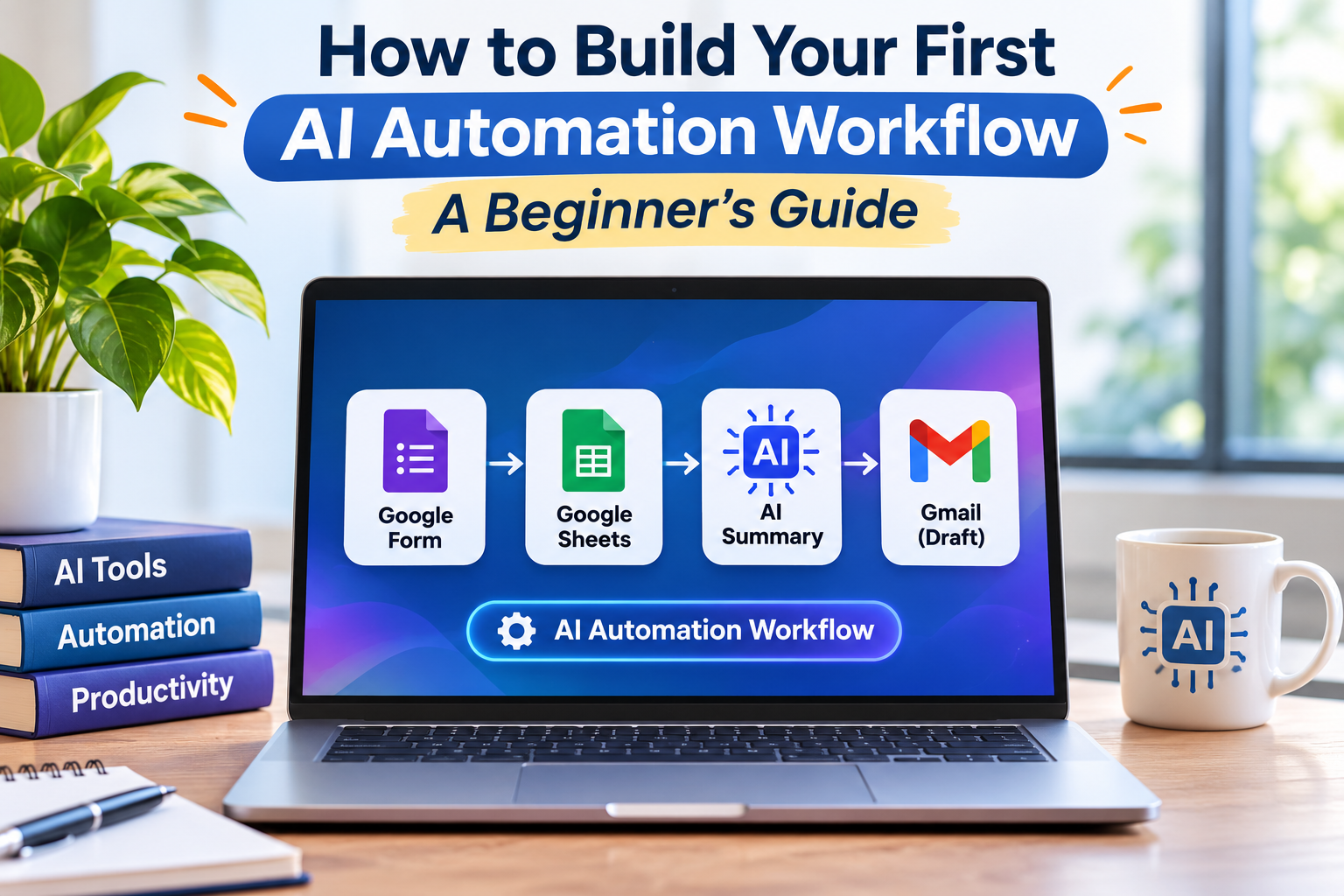
Imagine receiving a customer enquiry through a Google Form and having an AI tool prepare a useful summary and email draft automatically.
Instead of opening every response, copying information into another application, and writing the same type of reply repeatedly, you could let a simple automation handle the first few steps.
This is one of the most practical ways to start using artificial intelligence in everyday work.
The good news is that you do not need to be a professional programmer to build your first AI automation workflow.
In this guide, you will learn how AI automation works, which tools you need, and how to create a beginner-friendly workflow using Google Forms, Google Sheets, Zapier, and Gmail.
What Is an AI Automation Workflow?
An AI automation workflow is a sequence of connected tasks in which software performs actions automatically, with artificial intelligence handling tasks that require language understanding or content generation.
Traditional automation follows predefined instructions.
For example, a basic automation might copy a new form submission into a spreadsheet.
AI automation goes a step further. It can analyze the submitted information, summarize the request, classify its subject, or prepare a response.
A Simple Example
Suppose a small web design agency receives several enquiries each day.
Without automation, someone might need to:
- Open the new enquiry.
- Read the customer's requirements.
- Identify the requested service.
- Write a short summary.
- Prepare a reply.
- Save or send the email.
An AI-assisted workflow can automate much of this preparation while leaving the final response under human control.
How Does AI Automation Work?
Most beginner-friendly AI workflows have four main components.
| Component | Purpose | Example |
|---|---|---|
| Trigger | Starts the workflow | New Google Sheets row |
| Input | Supplies information | Customer enquiry |
| AI action | Processes the information | Summarizes the request |
| Output | Produces a result | Creates a Gmail draft |
A trigger is simply the event that tells the automation to begin.
For example, when someone submits a Google Form, the response can appear in a connected Google Sheet.
An automation platform can detect the new row, send selected information to an AI action, and use the result to create an email draft.
The workflow looks like this:
Google Form → Google Sheets → AI Summary → Gmail Draft
The person responsible for the enquiry can then review the draft before sending it.
Tools You Need to Build Your First Workflow
For this tutorial, we will use four services.
1. Google Forms
Google Forms lets you create online forms to collect information.
You can use it for customer enquiries, event registrations, feedback, or internal requests.
2. Google Sheets
Google Sheets stores the responses in a structured format.
Each submission becomes a new row, making it easier for automation software to identify and process information.
3. Zapier
Zapier is a workflow automation platform that connects different applications.
It allows users to create automated processes called Zaps.
A Zap typically starts with a trigger and continues through one or more actions.
We will use Zapier to connect the spreadsheet to an AI text-processing step and Gmail.
4. Gmail
Gmail will store the AI-assisted reply as a draft.
Creating drafts rather than sending emails automatically is a useful precaution for beginners.
Before starting: Check the current Zapier plan requirements, available AI actions, task limits, and connected-app permissions. A workflow with multiple actions may require a paid plan.
Step 1: Create a Google Form
Start by opening Google Forms.
Create a blank form and give it a clear title, such as:
Website Project Enquiry Form
Add the following questions:
- Name
- Email Address
- Service Required
- Project Description
- Preferred Timeline
For Service Required, you could offer choices such as Website Design, Website Development, SEO, and Website Maintenance.
Keep the form simple.
The goal is to collect enough information to understand the request without asking for unnecessary personal details.
For testing, use fictional names and non-sensitive example enquiries.
Step 2: Connect Google Forms to Google Sheets
Once your form is ready, open the Responses section.
Choose the option to link responses to a spreadsheet.
Create a new Google Sheet.
When someone submits the form, Google Forms will add the response to the connected spreadsheet.
Your spreadsheet might contain columns similar to these:
| Name | Service | Project Description |
|---|---|---|
| Alex | Website Design | Needs a five-page business website |
| Jordan | SEO | Wants help improving local search visibility |
| Taylor | Website Maintenance | Needs monthly updates and security checks |
Submit one or two fictional test responses.
These sample rows will help you configure and test the automation.
Step 3: Create Your First Zap
Open Zapier and sign in.
Choose the option to create a new Zap.
For the trigger application, select Google Sheets.
Choose a trigger such as New Spreadsheet Row.
Connect the Google account that contains your test spreadsheet.
Then select the correct spreadsheet and worksheet.
Test the trigger.
If everything is configured correctly, Zapier should retrieve one of your sample rows.
This row provides the information for the next step.
Why Testing Matters
Testing confirms that the automation can access the correct spreadsheet and read the expected fields.
If the wrong spreadsheet is selected, the workflow may process unrelated information or fail to run as intended.
Step 4: Add an AI Action
Now add an AI text-generation or text-processing action supported by your Zapier account.
Depending on the current Zapier interface and your plan, you may see options such as AI by Zapier or a supported AI provider integration.
Select an appropriate action for generating text.
Map the relevant spreadsheet fields into the AI action.
For example, include:
- Service Required
- Project Description
- Preferred Timeline
Avoid sending information that the AI does not need.
Example AI Prompt
You can use a prompt similar to this:
"Review the following website project enquiry.
Service: [Service Required]
Project description: [Project Description]
Timeline: [Preferred Timeline]
Write a concise summary of the customer's request.
Then draft a friendly, professional email acknowledging the enquiry.
Do not invent prices, deadlines, availability, or commitments.
If important details are missing, ask one or two relevant follow-up questions.
Return the result in two sections: Summary and Email Draft."
Replace the bracketed placeholders with the corresponding fields from your Google Sheets trigger.
What the AI Might Generate
For a fictional enquiry about a five-page website, the AI might produce:
Summary:
The customer is interested in a five-page business website and would like to discuss design requirements and a possible project timeline.
Email Draft:
"Hello,
Thank you for your enquiry about a new business website.
We would be happy to learn more about your project. Could you share any design examples you like and the main features you would like included?
Once we understand your requirements, we can discuss the next steps.
Best regards"
The exact wording will vary depending on the AI service and prompt.
Always review generated content before using it in customer communication.
Step 5: Create a Gmail Draft
Add another action to your Zap.
Select Gmail as the application.
Choose an action that creates a draft email.
Connect the appropriate Gmail account.
Configure the fields using the data from your earlier steps.
For example:
To: Email address from the form response
Subject: Thank You for Your Website Enquiry
Body: Email draft generated by the AI action
If your AI action returns a combined summary and email response, make sure you select or extract only the intended email text for the Gmail body.
The summary can remain available in the automation's output for internal review.
Test the Gmail action.
Open your Gmail Drafts folder and check whether the draft was created correctly.
Why Create a Draft Instead of Sending Automatically?
AI-generated messages can contain mistakes.
A draft gives you the opportunity to check the recipient, wording, project details, and any claims before contacting a customer.
For your first workflow, this is safer than enabling automatic sending.
Step 6: Test the Complete Workflow
Before activating the automation, test the entire process.
Submit another fictional enquiry through your Google Form.
Then check each stage:
- Did the form response appear in Google Sheets?
- Did Zapier detect the new row?
- Did the AI action generate a useful summary?
- Did Gmail create a draft?
- Does the draft contain the correct information?
Check for missing fields, duplicated content, and formatting problems.
If a step fails, open the Zap's run history or testing information to identify where the issue occurred.
Only activate the workflow once the test results are satisfactory.
Common Problems Beginners May Face
Even simple automation workflows can experience errors.
Here are some common problems and what to check.
| Problem | Possible Cause | What to Check |
|---|---|---|
| New form response not detected | Incorrect worksheet or trigger configuration | Spreadsheet and trigger settings |
| AI response is incomplete | Missing fields or unclear prompt | Field mapping and instructions |
| Gmail draft is empty | Wrong AI output selected | Gmail body mapping |
| Duplicate drafts appear | Repeated processing or multiple active workflows | Zap history and active automations |
| Workflow stops running | Account connection, quota, or plan issue | Connection status and task limits |
Avoid repeatedly activating a failing workflow without reviewing the error.
Doing so can create duplicate drafts or unnecessary usage charges.
How Much Does AI Automation Cost?
The cost depends on the tools, subscription plans, and number of times your workflow runs.
Google Forms and Google Sheets have free options for ordinary personal use.
Automation platforms may offer free plans with restrictions on available actions, workflow complexity, or monthly task usage.
AI services may also have separate usage charges or subscription requirements.
Before launching a workflow for business use, check:
- How many tasks your automation will perform
- Whether multiple actions are included in your plan
- Whether AI processing has separate charges
- How frequently the trigger checks for new information
- Whether failed or repeated runs affect usage
Start with a small number of test submissions so you can understand the workflow before expanding it.
AI Automation Security and Privacy Tips
Connecting multiple applications can be convenient, but it also means information may move between services.
For example, your workflow could transfer form responses from Google Sheets to an automation provider and an AI processing service.
This is why privacy deserves attention from the beginning.
Share Only Necessary Information
If the AI only needs the project description and requested service, avoid including unrelated personal details.
Review Application Permissions
Check what each connected service can access.
Use the minimum permissions required and remove connections you no longer need.
Protect Your Accounts
Enable multi-factor authentication where available.
Use strong, unique passwords and avoid sharing account credentials.
Check Data Processing Policies
Review the privacy and data retention policies of the AI and automation services you use.
For real customer information, confirm that your workflow complies with applicable privacy obligations and your organization's policies.
Keep a Human in Control
Do not automatically approve financial transactions, publish sensitive information, or send important customer commitments solely based on AI-generated output.
Human review remains essential.
Five More AI Automation Ideas for Beginners
Once your first workflow is running, you can explore other practical applications.
1. Customer Feedback Summaries
Collect feedback through a form and use AI to identify recurring themes.
This can help a small business understand common customer concerns.
2. Meeting Notes Organization
Use AI to summarize approved meeting notes and organize action items.
Always review the results before assigning responsibilities.
3. Content Planning
Collect article ideas in a spreadsheet and use AI to generate possible outlines.
Writers can then research, verify, and develop the ideas into original content.
4. Support Ticket Classification
Use AI to suggest categories for incoming support requests.
Human staff can verify the classification and decide how to respond.
5. Weekly Project Updates
Combine non-sensitive project status information and prepare a draft weekly summary for review.
This can reduce repetitive reporting work.
Best Practices for Building Reliable AI Workflows
A useful automation should be simple enough to understand and maintain.
Start with one clear problem rather than trying to automate an entire business.
Document the purpose of each step.
Use meaningful names for your workflows and test them whenever you change an application, prompt, or connected account.
Consider what should happen when information is missing or the AI produces an unexpected response.
For example, a customer enquiry without a project description should not result in an email that invents the customer's requirements.
As your workflow becomes more important, consider adding monitoring, error notifications, and duplicate-processing safeguards.
Frequently Asked Questions
Do I need coding skills to build an AI automation workflow?
No. Many automation platforms provide visual interfaces for connecting applications and configuring actions. More advanced workflows may require code or technical knowledge.
Can I build AI automation for free?
Some simple workflows can be created using free plans, but available features, AI actions, and task limits vary. Check current pricing before choosing a platform.
Is AI automation safe for small businesses?
It can be useful when designed with appropriate security controls, limited permissions, data minimization, and human review. No automation is completely risk-free.
Can AI automatically reply to customer enquiries?
Yes, some workflows can send messages automatically. However, beginners should start with drafts and review them before sending, especially when messages involve customer expectations or business commitments.
What is the easiest AI automation project for a beginner?
A form-to-spreadsheet workflow that generates a summary or email draft is a practical starting point because its inputs and outputs are easy to inspect.
Final Thoughts
Building your first AI automation workflow does not need to be complicated.
By connecting Google Forms, Google Sheets, an AI action, and Gmail, you can create a useful process that reduces repetitive work while keeping important decisions under human control.
The most valuable lesson is not simply how to connect applications.
It is learning how to design a workflow that is understandable, secure, testable, and genuinely helpful.
Start with a small project, test it carefully, and improve it based on real needs.
Over time, those small improvements can help you build more effective automation systems.
About the Author
Dheeraj Kumar contributes practical technology guides covering artificial intelligence, cybersecurity, software, web development, and digital productivity.
Explore more technology insights and beginner-friendly guides at Global Insightly.
About the author
- I'm Dheeraj Kumar, a technology and digital marketing enthusiast contributing to Global Insightly (https://globalinsightly.com/). I share practical guides and insights on artificial intelligence, cybersecurity, cloud computing, software, web development, and digital marketing. My goal is to make technology easier to understand through simple explanations, useful tutorials, and actionable tips for beginners and tech enthusiasts.
Comments
Join the discussionNo comments yet. Be the first to comment.